 |
|
|
But before we get there, a few setup tips are in order as one area where Auraliti could make some progress in the quality/quantity of their initial installation material. If you reach out to them with any question, they will get back to you most often within 24 hours, and with a detailed and clear response. Simply don’t believe that you somehow missed the information on their website. It is simply not there, at least not in any more detail than the simple 2-sided page printed and included in the box. One critical element to operating the PK90 is to connect it to the network that the controlling computer or tablet/phone will be connected to. It can be an all-cabled network for folks like Srajan who get undesirable physical side effects from WiFi; or you can connect into your wireless network using a separate access point. Either way works. Our house being all Apple, I grabbed a small Apple Airport Express, plugged it in and within minutes had a new access point into my network by simply following the very easy setup tutorial that launched as soon as the Airport Express was recognized by my iMac. Once set up, it was only a matter of connecting the PK90 to the Airport Express via CAT6 cable and voilà, the PK90 was now part of the network with its own IP address to be instantly detectable by any of the computers on our home network. I did mention earlier my lack of confidence in the resilience of my wireless network. In this instance, the PK90 only connects to the network to receive user commands. No music files transit through the network as they are all sourced from the attached drives.
|
 |
Now, I did run into a small glitch in the process which nobody could easily have foreseen but which may repeat itself for others with similar gear. When I did the initial setup, I started with the PK90 connected to the Burson Conductor. Despite my best efforts, the PK90 would not appear on the network. After being baffled for a while, the folks at Auraliti suggested a startup with no DAC or hard drive connected. Suddenly the PK90 became visible. The issue was eventually tracked to the Tenor USB chip which my early production Burson Conductor utilizes. As Srajan can attest, this chip does not play well with many other components, often resulting in data dropouts but in this case with the unique ability to disappear the PK90 from the network. If I booted without DAC first and then connected it, all was fine. If I booted up the PK90 with the Burson connected, the PK90 remained MIA. Since I later encountered dropped data between Auraliti and Burson as I had with my iMac and other BD/DVD players, I decided to move on and finally get a DAC that would offer far more reliable performance while maintaining the preamp functionality of the Burson. At this point I purchased the SOtM DAC. Unless stated otherwise, it is the one I used for most of this review. Once delivered, the SOtM connected to the PK90 without problems and the magical act of the disappearing file player was never to be heard or seen from again.
|
|
|
|
|
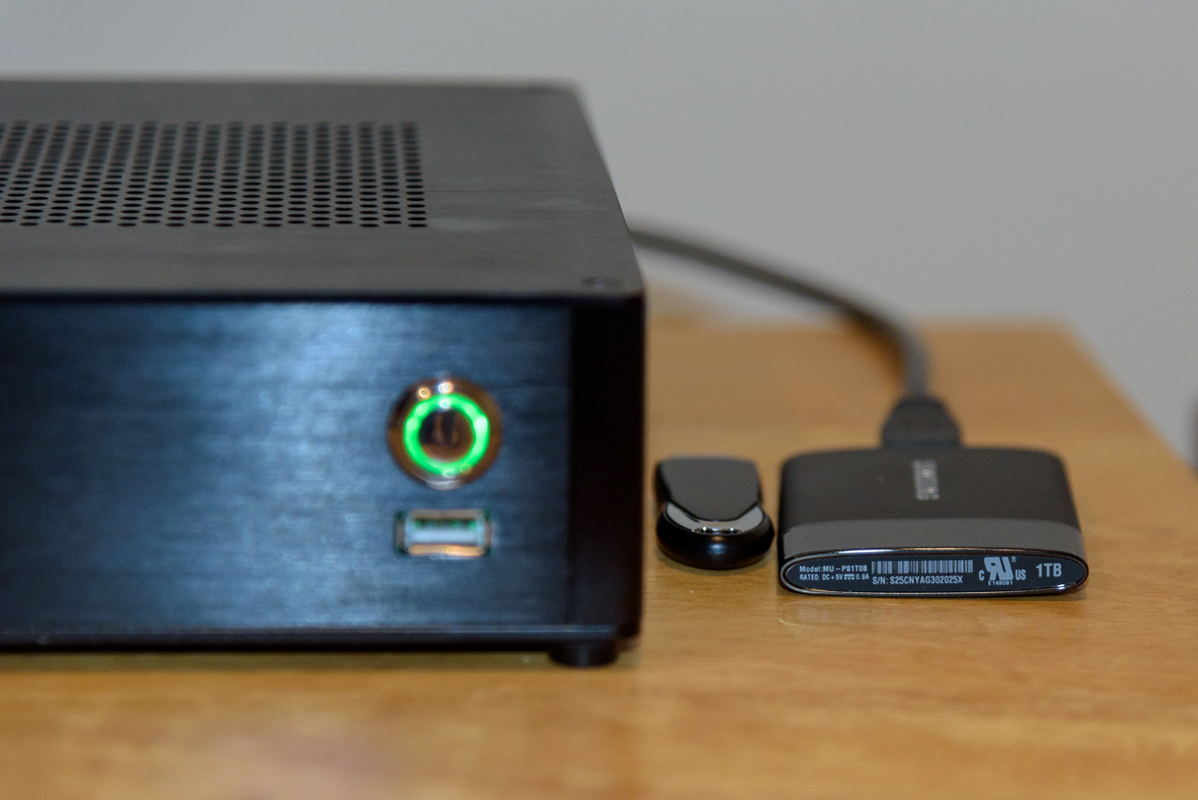
One of the most striking elements of the Auraliti player as I set it up is, to my mind at least, the external 1TB hard drive which hosts my music files. I ordered the Samsung external SSD from Amazon for $350 and it arrived in a tiny bubble envelop. Once taken out, the full drive was hardly bigger than a USB stick and certainly quite a bit smaller than a last-gen iPhone. I included the above photo for size comparison as it still strikes me hard that thousands of albums, many of them in high resolution, now reside in this little box which is quite a bit smaller than a CD case. The back of the PK90 can accommodate two of these for 2TB of total storage. This should meet the needs of most avid audiophile. Ultimately the PK90 is limited to 2TB per drive for a total of 4TB max attached storage but external 2TB SSDs are not yet common. Considering how this machine doesn't do video, 4TB of music files, even in DXD, are a lot of music.
|
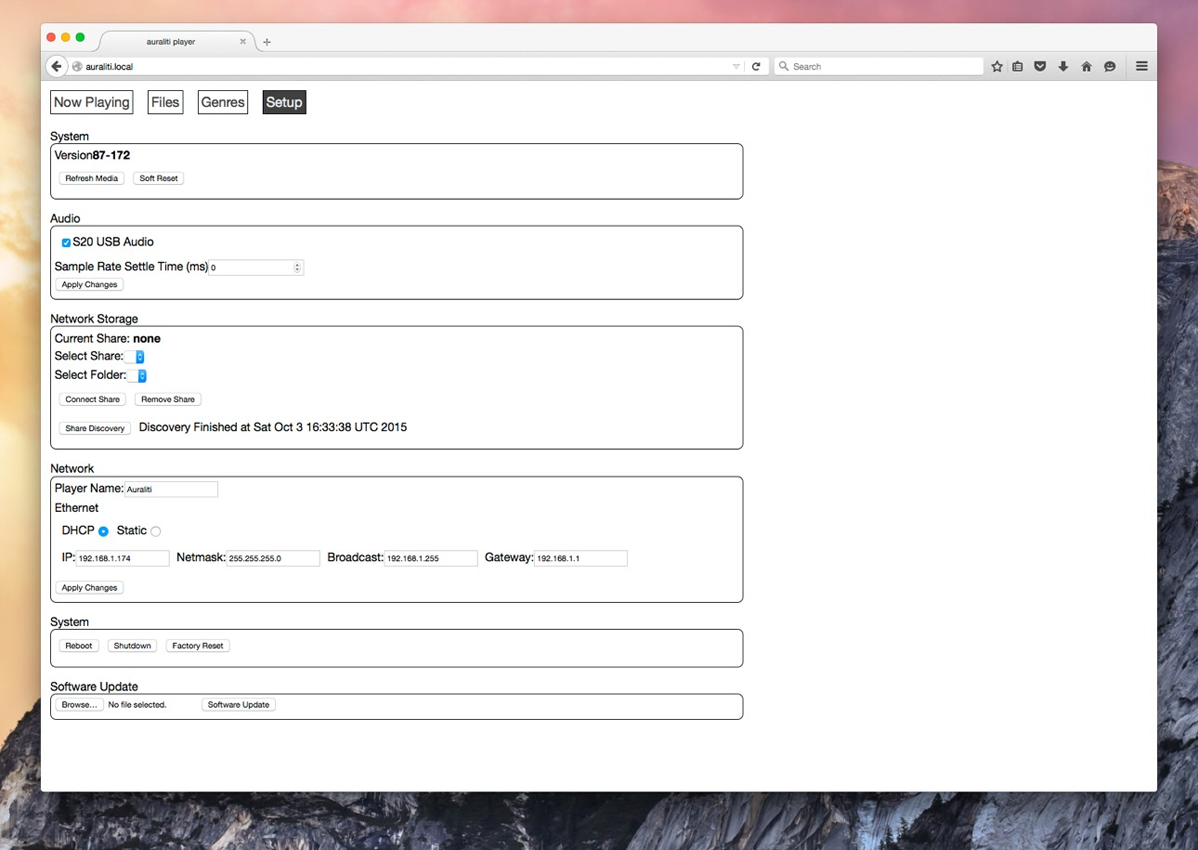 |
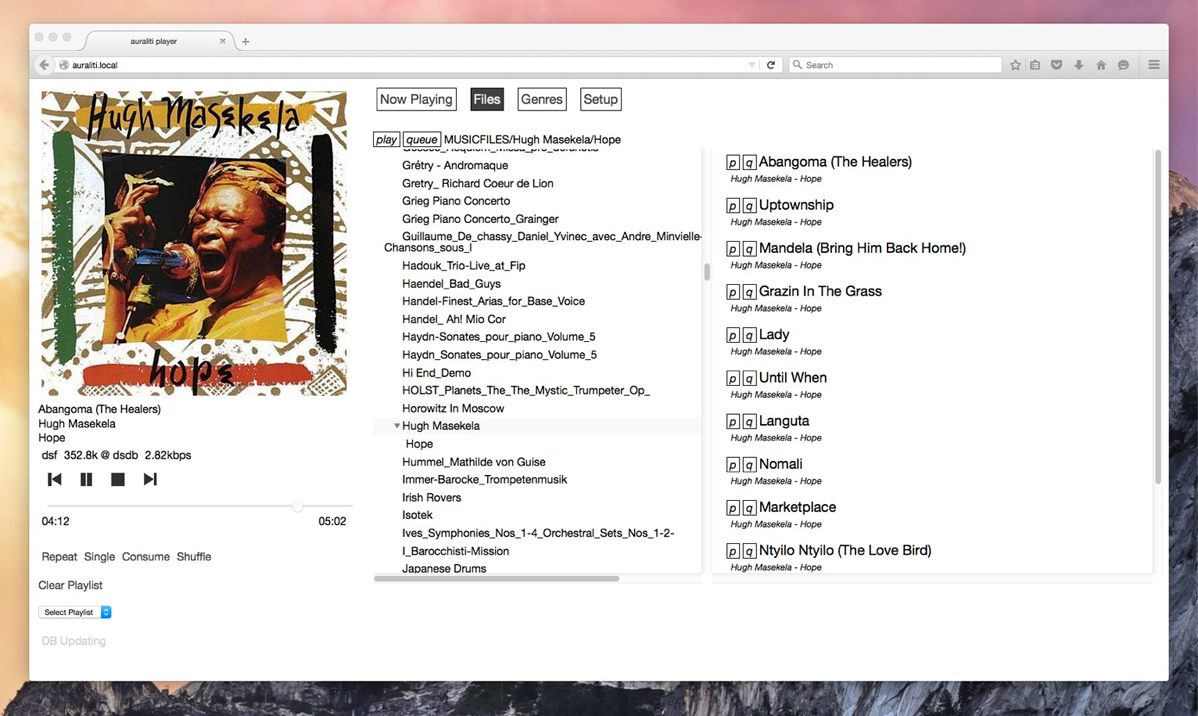
Ready for take-off? Auraliti PK90? Check. External SSD loaded with goodies from 16/44 to DXD and DSD? Check. Connection to wireless local area network? Check. DSD and DXD capable DAC connected via USB? Check. All that was left to do was to choose from one of the many ways to commandeer the PK90 and pick which files to play. The easiest worry-free solution is to call up the internal MPD client program. MPD is short for Music Player Daemon or as I understand it, the Unix architecture which organizes the music files and enables playback. The client software then is the interface that calls up those files and triggers playback. What you need to access this on-board interface is a web browser on any computer or tablet that connects to the same network. All you do is type "Auraliti.local" in the address bar of your browser (I successfully tested Firefox, Safari and Explorer) and the PK90 user interface pops up. It comprises four tabs. The first one shows the artwork of what’s currently playing, the playlist that will be executed as well as play/pause/stop and fast forward/back. The second tab shows the file infrastructure in the database and allows you to navigate your files, choose play (P) for a single file or album or queue it (Q) for later. The third tab offers the same information organized by genre. Simpler is hard to imagine.
The only areas for improvement are fairly minor. First, the interface does not provide visual feedback for having received a command. If you click Q next to a file name, it won’t flash or change to acknowledge the command. Initially you’ll do what I did, which is click five times only to wonder why you have the same file in your playlist five times over. Once you get it, the mistake is easily avoided. The second area would be to have a thumb nail of the album art when browsing the file tab. The player displays embedded artwork on the playlist tab so it can read it fine. Why won’t it display on the browsing page? The primary limitation of this interface is that it won’t allow sorts or searches. Your file architecture had better be organized and consistent because that’s the only way you’ll find the music you are looking for. On the positive side, it is easy, intuitive and requires zero knowledge of any kind. If you know how to surf the web, you can play your music.
|
 |
The fourth tab accesses a number of management functions like purging memory caches, rebuilding libraries, resetting the PK90 to factory standard should you need to and uploading new firmware. It also allows you to change the name of the player should you venture into running multiple PK90s. Just remember that once renamed, your PK90’s home page will no longer be "Auraliti.local" but "NewName.local" where "New.Name" is whatever name you gave this specific unit (like PK90bedroom for example). If you want to control the PK90 from a mobile device, you can easily do so through its Internet browser as explained; or with cheap apps like MPad for iPad; MPod for, you guessed it, iPod; and the very cleverly named MPDroid for… I let you guess that one. Unless you run into the Burson/Tenor glitch, those programs will auto detect the Auraliti and start uploading the music database structure to their own memories. Playing a file then is no more difficult than tapping it to add it to the playlist, similar with a whole album. Initially you will be amazed at how instantaneous every action is when playing off an SSD. There is absolutely no lag whatsoever.
MPad has one major weakness. It does not read embedded jpg cover art. To get MPad to display it, you must add to each album folder a picture called "folder.jpg" and point the app at the right location. Then MPad will display it as the artwork for that specific album/folder. If you have ripped a 4-CD version of Rossini’s Guillaume Tell into four separate folders, you need to add the artwork to each folder as described. That’s a lot of manual work!
|
|
 |
|

|

|
|
